Changing your plan
What happens when you upgrade, downgrade, or cancel your ADO Pilot subscription, and when each change takes effect.
Last updated
You can upgrade, downgrade, or cancel your ADO Pilot subscription at any time. Upgrades and downgrades both take effect immediately — the new plan's included RCs, overage policy, and overage rate apply right away; cancellations either end the subscription now or at the end of the current period.
Upgrading your plan
On the Billing page, click Change plan in the Plan card, pick a higher tier at your current billing cycle, and confirm — the whole flow, including the proration preview, happens inline without a redirect.
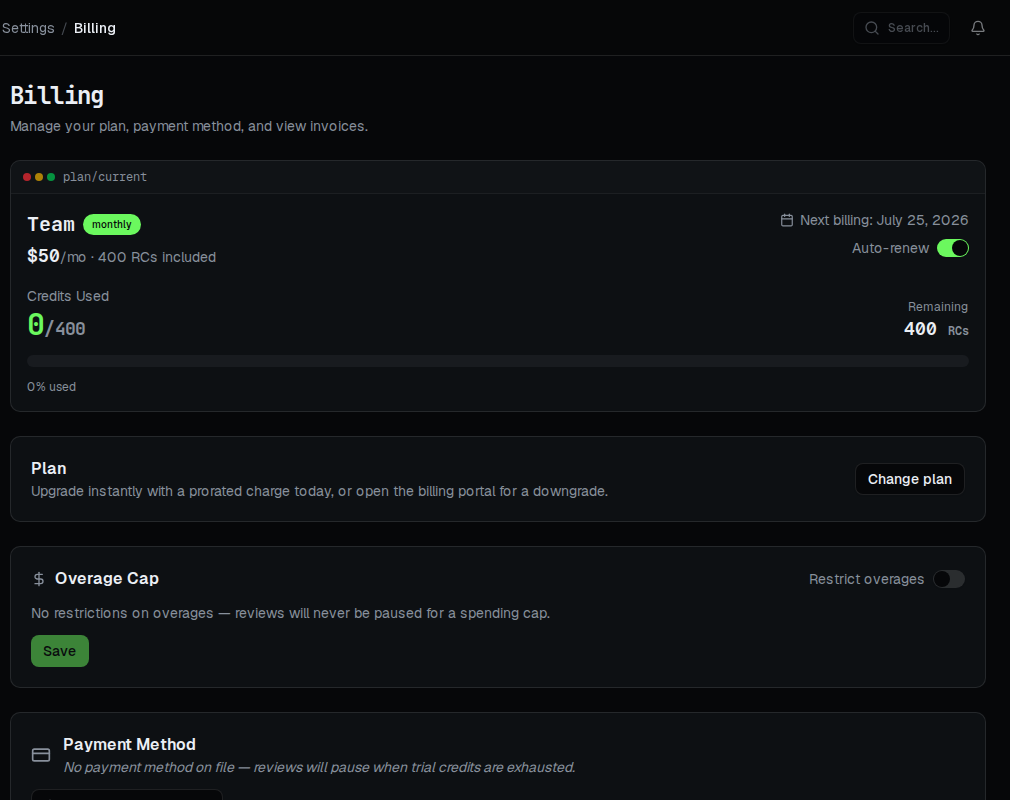
An upgrade — for example, from Team to Business — takes effect immediately and applies to your current billing period.
- The dialog shows a Stripe-computed proration preview before you confirm. Selecting a higher tier at the same billing cycle fetches the exact prorated amount due today; nothing is charged until you click Confirm plan change. If your card needs a fresh authentication challenge, ADO Pilot handles it inline against your existing saved card — no card re-entry. If your card is declined, the dialog mounts an inline form to collect a new one and the confirm button reads Confirm payment & change plan instead.
- The new plan's included RCs are available right away. Your consumed-RC counter is reset to zero, so you do not pay twice for any reviews you ran earlier in the period. The review deduplication list is also cleared, so in the rare case where a review is already in flight when the upgrade lands, that review's quota reservation could be counted again.
- The new plan's included RCs and overage rate take effect immediately. A Team-to-Business upgrade does not change your overage policy — monthly Team and Business both default to auto-overage — so reviews continue past your included RCs either way. What changes is the included-RC allocation and the per-RC overage rate (Team's
{% $plans.team.overageRate %}becomes Business's{% $plans.business.overageRate %}), applied from now. - Your billing day does not change. Subsequent renewals continue on your existing anchor date.
Downgrading your plan
To downgrade, open the Change plan dialog on the Billing page (same entry point as an upgrade) and select a lower tier, or the same tier on a different billing cycle. Either selection closes the dialog and opens the Stripe-hosted billing portal, where you confirm the change — downgrades and cycle changes are not self-service in-app.
A downgrade — for example, from Business to Starter — takes effect immediately, the same way an upgrade does. It is not deferred to your next billing date.
- The new plan's included RCs, overage policy, and overage rate apply right away. Your quota switches to the lower plan's allocation as soon as ADO Pilot processes the downgrade.
- RCs you've already consumed this period are not reset. Unlike an upgrade, a downgrade does not zero out your consumed-RC counter — if you've already used more RCs than the new plan includes, you can be over your new allocation immediately. See Overage behavior for what happens when you exceed your included RCs.
- Proration for the plan-fee difference is handled by Stripe. Check your invoices in the Stripe billing portal for the exact credit and timing.
If you downgrade from Business to Starter on the 20th of a Feb 15–Mar 15 period, the switch takes effect that same day: your included-RC allocation, overage policy, and overage rate become Starter's immediately, and any RCs you've already used this period count against Starter's allocation rather than Business's.
Cancelling your plan
There are two ways to cancel, and the difference matters:
- Cancel at period end (recommended). The subscription stays active through the end of the current billing period and then cancels automatically. You can keep using your remaining RCs until the period boundary, no further invoices are issued after the final period, and you can change your mind any time before the period ends.
- Immediate cancellation. The subscription ends now. New PR reviews are blocked starting immediately, and no future invoices are issued. Use this when you need to stop reviews without delay.
Stripe sets a cancel_at_period_end flag on the subscription for the first option; while that flag is set the subscription's status remains active in ADO Pilot, so reviews continue to run normally until the period boundary. On the boundary the subscription transitions to cancelled and reviews are blocked.
Cancel at period end — in-app
On the Billing page, switch off the Auto-renew toggle next to your current plan and confirm Turn off auto-renewal in the dialog that appears. This sets cancel_at_period_end on your subscription directly — no redirect. To change your mind before the period ends, switch Auto-renew back on and confirm Resume auto-renewal; the subscription continues without interruption and your next invoice is normal.
Immediate cancellation — Stripe portal
Immediate cancellation isn't available as a dedicated in-app control — reach it through the Change plan dialog's portal fallback:
Step 1 — Open the Stripe portal
In the Plan section of the Billing page, click Change plan, then select any plan or cycle other than a same-cycle upgrade (for example, your current plan on a different billing cycle). The dialog closes and redirects you to the Stripe billing portal.
Step 2 — Cancel the subscription
In the portal, choose Cancel subscription and confirm immediate cancellation. (Cancel at period end is also offered here, but the Auto-renew toggle above is the more direct in-app way to do the same thing.)
Step 3 — Verify in ADO Pilot
Return to the Billing page. The subscription now shows as cancelled.
Reactivating after cancellation
If you cancelled at period end and change your mind before the boundary, switch the Auto-renew toggle back on and confirm Resume auto-renewal — the subscription continues without interruption and your next invoice is normal.
If your subscription has already cancelled, cancellation intentionally revokes your Azure DevOps connection for security: your Personal Access Token and webhook credentials are permanently deleted, and the PR-review service hooks are removed from your Azure DevOps projects. Reactivating requires reconnecting Azure DevOps — re-subscribing on the Billing page alone does not resume reviews. Your plan configuration, repo settings, and billing history remain associated with your account for a retention window after cancellation, but PR reviews stay stopped until you reconnect. See Trial and conversion for how the signup flow handles a returning customer reconnecting their Azure DevOps organization.
2026-07-14 addendum: the proration/invoice-timing hedge in finding (5) above still applies to the DOWNGRADE path (still portal-based, config lives in the Stripe Dashboard). It does NOT apply to the upgrade path anymore — the in-app dialog shows the exact Stripe-computed amountDue from the preview endpoint before the customer confirms, so "check your invoices for the exact amount" was replaced with "the dialog shows the amount before you confirm," which is now directly verifiable in-product rather than deferred to Stripe Dashboard config.