My PR didn't get an AI review — quota exhausted
Why a PR is silent after ADO Pilot's review credits are exhausted on a capped or hard-blocked org, and how to get reviews running again.
Last updated
Your pull request didn't get an AI review — a failed status check was posted, but no summary comment or inline review threads appeared. The Reviews list in your dashboard shows the review with status Failed, and your org admin may have received a Review quota exhausted email — though that email only means your organization's included review credit (RC) pool for the current billing period is used up, even on auto-overage accounts where reviews keep running; the failed status check on this PR is what actually confirms reviews are blocked rather than billing overage. On the standard Starter, Team, and Business tiers, auto-overage is the default, so reviews normally keep running past your included RCs and bill the per-RC overage rate — you only see this block when an overage cap has been reached, the cap is set to zero, an Enterprise hard-block applies, or your trial ran out with no payment method on file.
Symptom
Where you see it
- On the PR: a
failedstatus check is posted with the description "AI review blocked — review credit quota exhausted. Upgrade your plan or wait for the next billing period." No PR-level summary comment and no inline review threads are posted. Ifai-pr-reviewis configured as a required branch policy, the PR will be blocked with this quota message visible. - In the dashboard: the Reviews page shows the review with status Failed. Clicking through to the review detail confirms the review failed, but shows only a generic "The review did not complete. Please retry the PR." message — not the specific quota reason.
- Email: the org admin receives a Review quota exhausted for
<org>notification.
What it blocks
No new reviews run for any repository in the org until you take one of the actions below or your billing period rolls over. PRs that were already reviewed before the cap hit are unaffected — the existing comments and verdict stay on the PR.
Why it happens
ADO Pilot bills by review credit (RC). Each PR review costs at least 1 RC, and roughly 1 RC per 500 billable diff lines after exclusions. See Review credits explained for the formula.
Auto-overage is the default
Starter, Team, and Business all default to auto-overage. When the included RC pool hits zero, reviews keep running and bill the per-RC overage rate — so on a default account you normally see no interruption at all. By default there is no cap. You only see this block when overage stops, which happens in the cases below.
When reviews are blocked instead
Reviews are rejected — a failed status check is posted with a quota message, no inline review comments are produced, and no charge is applied for the rejected review — when any of these apply:
- You set an Overage Cap and your overage RCs reached it. Behavior switches to hard-block for the rest of the period.
- Your Overage Cap is set to zero, which behaves exactly like hard-block from the moment the included pool is exhausted.
- Your org is on an Enterprise or custom contract with a negotiated hard cap, configured explicitly by an admin. Hard-block is not a default on the standard tiers.
Trial credit exhaustion
A new organization starts with a small trial RC pool. When the trial runs out and no payment method is on file, the same behavior applies — a failed status check with a quota message is posted and the dashboard shows Failed. Before that happens, your org admin gets a Your trial is running low email once the trial approaches its cap; a trial does not trigger the Review quota exhausted email, which is reserved for paid accounts. The fix is to pick a paid plan from the dashboard.
How to fix it
You have three options. Pick the one that matches how soon you need reviews running again.
Option 1: Upgrade to a higher tier
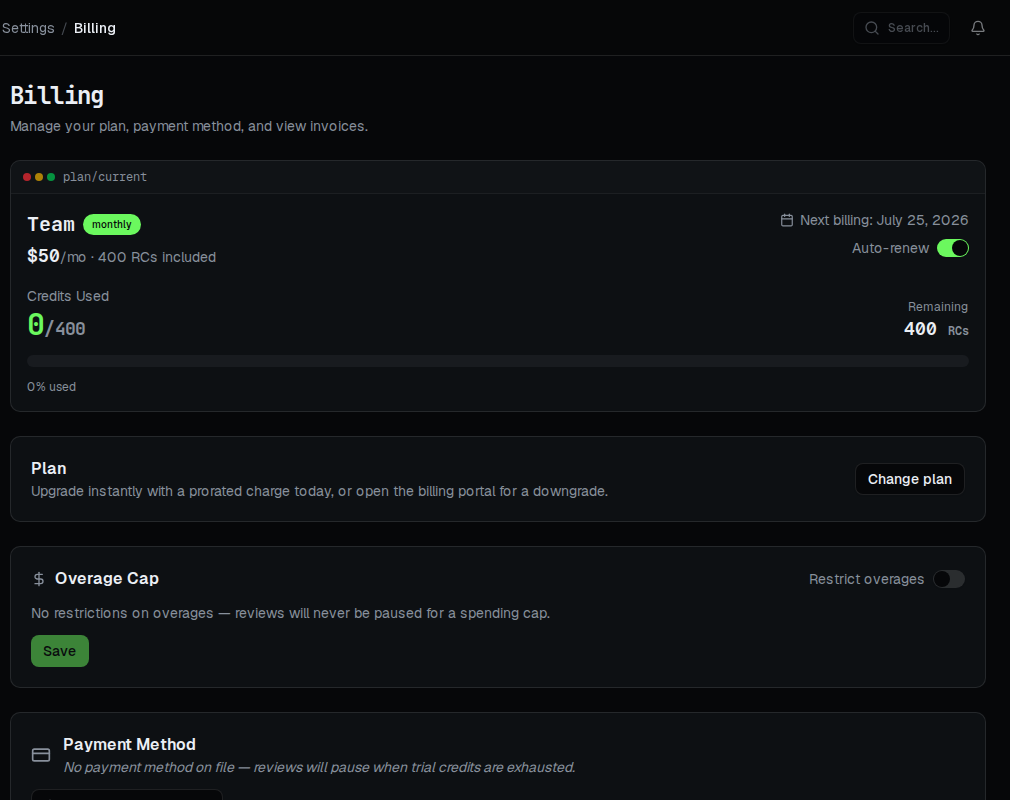
Open Billing in your dashboard, find the Plan card, and click Change plan. Pick a higher tier at your current billing cycle and confirm — the proration preview and confirmation happen inline, with no redirect. Upgrades take effect immediately, your current period's quota is reset to the new tier's pool, and reviews resume on the next PR push. See Plan tiers for the included RC counts and Changing your plan for the full upgrade flow.
Option 2: Raise or remove your Overage Cap
If your reviews are blocked because they hit an Overage Cap (or the cap is set to zero), raise the cap — or remove it to run uncapped — on the Billing page. Saving a new cap requires you to recently re-confirm your identity (a "step-up" check): enter a fresh authenticator code if you have two-factor authentication enrolled, your account password if you sign in with a password, or a one-time code we email to your current address if you sign in without a password (a magic link, an email code, or Sign in with Microsoft) — two-factor authentication is not required to change the cap (see Step-up re-authentication). Reviews resume immediately and excess RCs bill at the per-RC overage rate. See Overage behavior for how the cap interacts with the rate. If your org is on an Enterprise or custom hard cap, contact your admin or sales to adjust it.
Option 3: Wait for the period to reset
Quota rolls over at your Stripe billing anniversary, not on the 1st of the calendar month. Find the exact reset date on the Billing page — it's shown as Next billing on your current-plan card. Reviews resume automatically on the first PR push after rollover. No action required from you.
How to prevent it
- Monitor RC consumption. The Billing page shows current-period usage as a credit meter; the Dashboard home shows a per-day usage chart. Check them weekly.
- Tune your file exclusions. Binary files, source maps, and lockfiles ending in
.lockare excluded by default; add patterns for generated code, minified bundles, and JSON/YAML lockfiles (for example**/package-lock.json) that you don't want reviewed. Excluded lines do not count against your RCs. See Excluding files from review. - Keep PRs small. ADO Pilot reviews large PRs in full — there's no line-count cap that silently truncates a review — but very large PRs put more pressure on the review and can fail outright. Aim for under ~1,500 changed lines; see No findings posted on a large PR. Splitting a large PR up costs the same total RCs but produces better reviews.
- Pick a plan that fits your team's PR cadence. The "~75 medium PRs / month" framing on the plan cards is a good starting point for sizing.