Invoices and payment
How to view invoices, update your payment method inline, and resolve failed payments.
Last updated
ADO Pilot uses Stripe for invoicing and payment. You add or update your default payment method directly on the ADO Pilot Billing page — no redirect required. ADO Pilot itself never stores card numbers — Stripe's embedded payment form handles all card data.
Updating your payment method
On the Billing page, click Update in the Payment Method card to expand an inline card-entry form. If you have not added a payment method yet, the same button is labelled Add payment method instead. Enter your card number, expiration date, security code, country, and ZIP/postal code, then click Save card — the form submits without leaving the page, and the new card becomes your default immediately. Supported card types depend on your country.
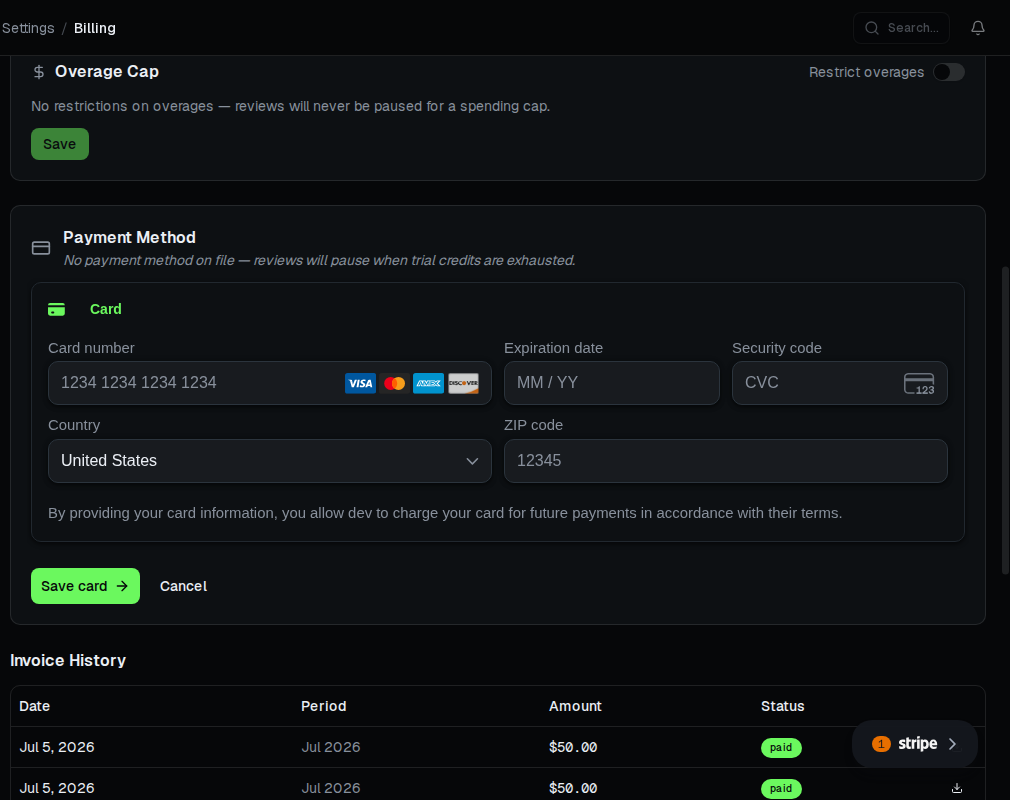
Managing your payment method
- Add or update your default card. Use the inline form above — no redirect to Stripe.
- Update an expiring card. Stripe can email you before a card expires; follow the same inline Update flow to replace it.
- Change your billing address, or remove a card entirely. These aren't available in the inline form yet. Open the Stripe-hosted billing portal instead: in the Change plan dialog (see Changing your plan), selecting a downgrade or a billing-cycle switch — anything that isn't a same-cycle upgrade — falls back to the portal, where you can manage your address and saved cards directly. Leaving the account with no card on file will cause your next invoice to fail.
Viewing and downloading invoices
The Billing page in ADO Pilot lists your recent invoices under Invoice history. Each row shows the invoice date, the billing period, the amount, and the payment status:
- paid — Stripe collected payment successfully.
- pending — the invoice is open; Stripe will retry collection automatically.
- failed — Stripe could not collect payment (this also covers an invoice Stripe has not finished finalizing).
Click the download icon on an invoice row to open that invoice's Stripe-hosted page in a new tab, where you can view or download a PDF for your records. The icon is disabled if Stripe hasn't published a hosted page for that invoice yet. Invoices include your subscription fee, any metered overage for the period, and applicable taxes.
Failed payments
If a renewal charge fails, ADO Pilot pauses new PR reviews right away — your Azure DevOps connection stays intact, but no new reviews run until payment succeeds. Stripe automatically retries the charge over the following days and emails you each time; if a retry succeeds, ADO Pilot resumes reviews automatically and you don't need to take any action.
To resolve a failed payment:
Step 1 — Add or update your card
Click Update (or Add payment method if none is on file) in the Payment Method card on the Billing page, and enter your new card details inline — no redirect.
Step 2 — Save the card
Click Save card. Stripe re-runs the failed charge against the new method automatically.
Step 3 — Confirm the charge succeeded
Wait a few minutes, then check the Billing page. The previously pending invoice should now show paid.
A failed renewal charge suspends your subscription immediately — it does not cancel it. New PR reviews pause right away, but your Azure DevOps connection stays fully intact: your service-hook subscriptions, personal access token, and webhook credential are all preserved. As soon as payment succeeds — a Stripe retry collects, you update your card above, or you start a new subscription — ADO Pilot automatically restores your account and reviews resume within minutes. You do not need to reconnect Azure DevOps, reinstall the extension, or open a support request.
A suspension from a failed payment is fully reversible. Only an intentional cancellation (choosing Cancel subscription in the Stripe portal) or a payment dispute/chargeback permanently disconnects your organization — see Reactivating after cancellation.
Tax and billing address
Taxes are calculated and collected by Stripe based on your billing address and local rules. To update your address, open the Stripe billing portal (see Managing your payment method above for how to reach it) and edit Billing details. Address changes take effect on your next invoice.